Front Matter CMS day to day: dashboard, filters and media





In the previous article, we built a custom content type: the form knows our fields, the lists feed themselves, manual typing has almost disappeared. Configuration is behind us.
This article is about what comes after: the weeks when you no longer open frontmatter.json. Writing, finding, classifying, illustrating — the routine. This is where the real question asked at the start of this series plays out: does the tool hold up once the novelty wears off?
Write and preview an article without leaving VS Code, find it again in three clicks in the dashboard, filter and group by series (not just by tags), merge duplicate tags across the whole blog in one go, and manage your images from the built-in media library.
The dashboard, the new front door
Until now, my way into the blog was the file explorer: unfold blog/, then the year, then the month… A dated tree like blog/2026/07/21/my-article/ is perfect for Git and for humans reading URLs — but for browsing, it's painful. You never remember which month an article was.
The dashboard replaces all of that. It opens from the Front Matter icon, or through the command palette:
Front Matter: Open dashboard
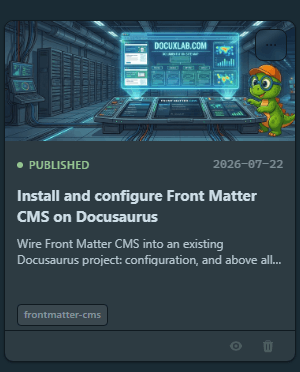
Every article becomes a card: cover image (supplied by the isPreviewImage we set on the image field in the previous article), title, date, draft/published status, and a row of tags.
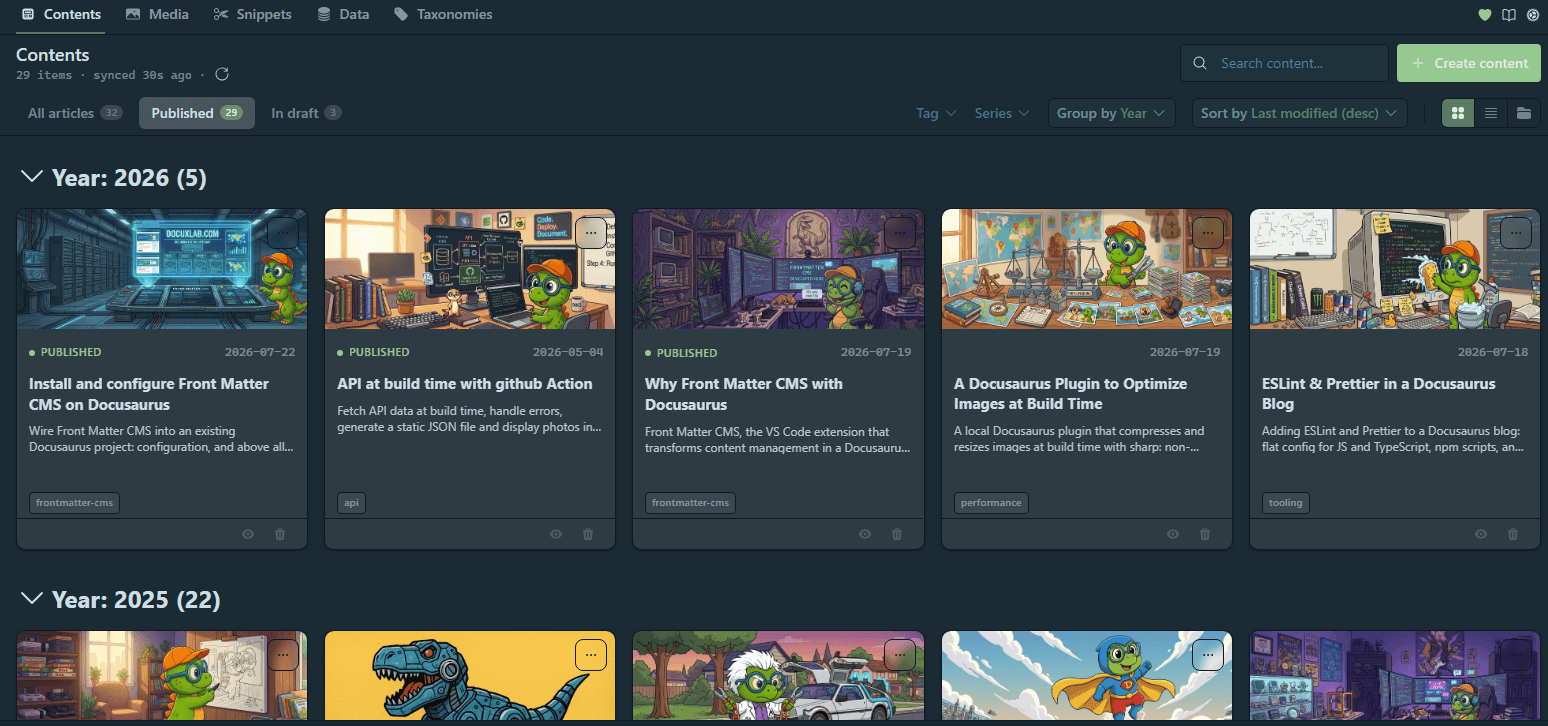
First comfort tweak: by default, the card shows all of an article's tags. With six tags per article, the cards get chatty. The displayed field is configurable — I point it at mainTag, one clean tag per card:
"frontMatter.dashboard.content.cardTags": "mainTag"
It's a small detail, but it's exactly the kind of field we created in the previous article without knowing yet everything it would be good for.
The hidden card menu
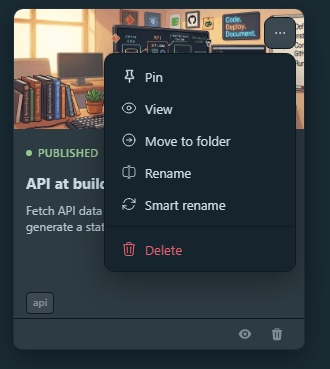
Every card carries a discreet ⋯ menu, and it's worth the detour: Pin, View, Move to folder, Rename, Smart rename, Delete.
Move to folder moves the article — the whole folder, images included since we're using page bundles — to another content folder declared in pageFolders. Handy the day a draft changes destination.
Smart rename deserves an explanation, because its name doesn't say what it does. Where Rename asks you for a new name, Smart rename asks for nothing: it re-syncs the filename with the front matter. It takes the title, regenerates a clean name, applies the filePrefix logic, and renames — the whole folder for a page bundle. If everything is already in sync, it does nothing; if the target exists, it refuses.
Its use case is drift: a title reworked after creation, a folder renamed by hand that no longer matches… I know a thing or two about that — while writing this series, I renamed and moved article folders by hand more than once. This button existed, and I didn't know it.
The frontMatter.taxonomy.alignFilename setting makes this sync automatic: every time a slug is regenerated, the file is renamed along with it. Enabling it on an existing site triggers no mass rename — it's never retroactive, and only acts on files whose slug you regenerate afterwards. To catch up existing files on demand, that's exactly what Smart rename is for.
The real caution lies elsewhere: on an already-published article, regenerating a slug changes its URL — that's what breaks links, not the filename.
The writing loop, without leaving VS Code
A typical day doesn't start with a terminal. It starts with the Front Matter panel, which gathers three actions covering the whole writing loop.
Create content, first — we won't dwell on it: article creation, its five settings and its three traps are the heart of the previous article.
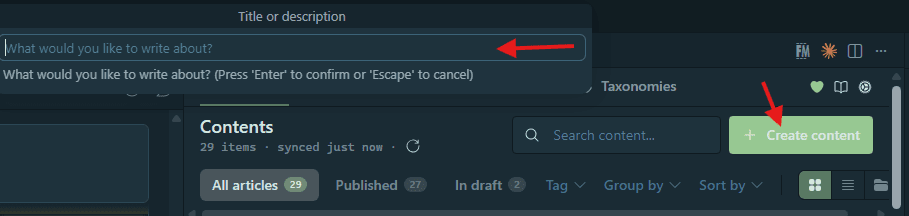
Start server, next. The button starts the development server — Docusaurus was detected at initialization, so npm start fires, with nothing to configure. If your project starts differently, the command can be replaced:
"frontMatter.framework.startCommand": "npm run start -- --port 3001"

Open preview, finally — the gesture I make most often. It opens the current article's rendering in a tab next to the editor: Markdown on the left, the page served by the dev server on the right.
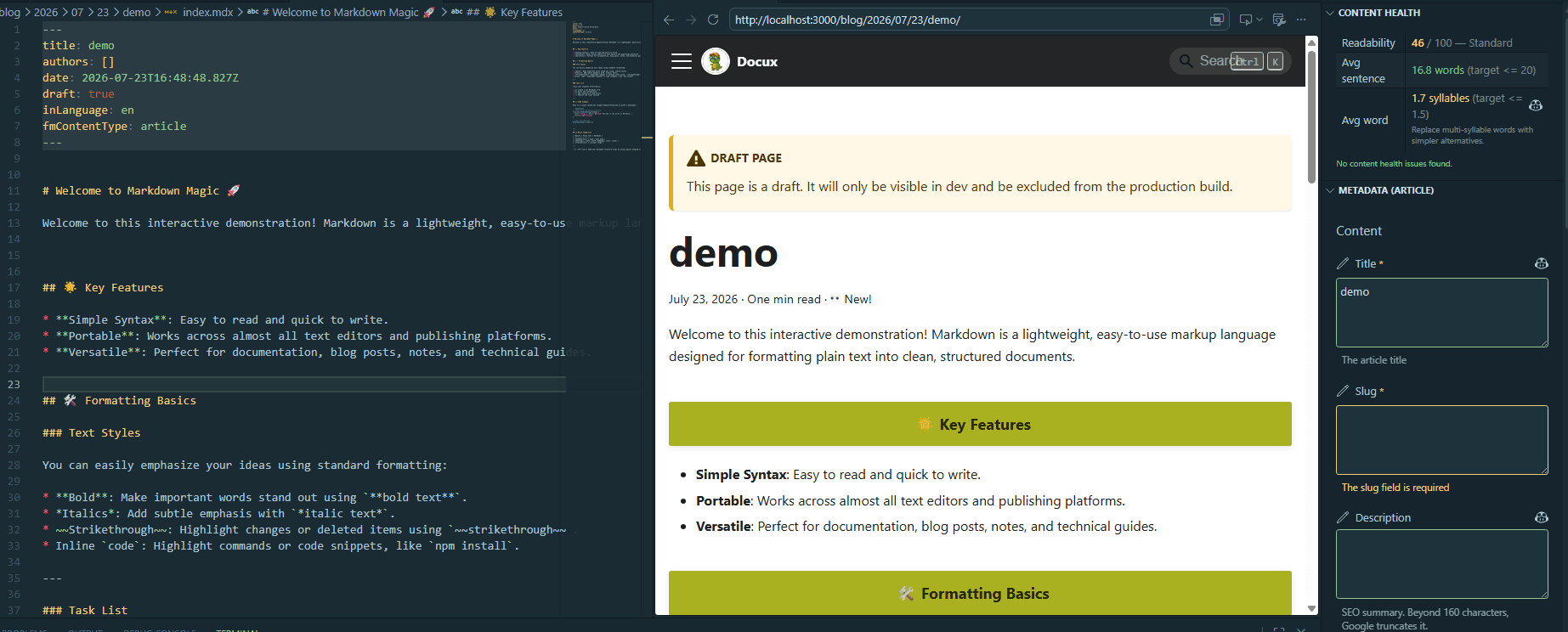
For the preview to land on the right URL, two settings come into play — and one of them has been sitting in our content type since the previous article without ever being explained:
"frontMatter.preview.host": "http://localhost:3000",

// and in the content type:
"previewPath": "blog",
"trailingSlash": true
previewPath is the missing link between the file and the URL. Our articles live in dated folders (blog/2026/07/26/…) but their URLs keep none of it: the slug is in charge. So the preview is built like this: host + previewPath + slug — that is http://localhost:3000/blog/my-slug/, with the trailing slash because the site is configured with trailingSlash: true on both sides.
The panel also carries the publication status: switching from draft to published happens from the metadata section, without opening the front matter. For us, "publishing" simply means draft: false followed by a commit — deployment does the rest, but that's for later in the series.


Finding one article among twenty (or sixty)
This blog has about twenty published articles. That's not huge, but it's already enough for "I know I wrote about this somewhere" to become a real search. The dashboard offers three tools, from the bluntest to the most precise.
Search, first: a text field that filters the cards as you type.
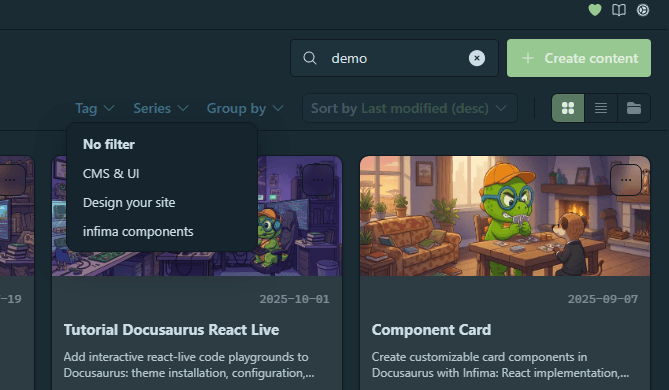
Filters, next. There are three by default: content folder, tags, categories. For this blog, two of the three are useless — a single content folder, and no categories. My real classification axis, the one that structures what I write, is the series.
And here's the good surprise: filters are not limited to the default list. The frontMatter.content.filters key accepts any front matter field, as a { title, name } object:
"frontMatter.content.filters": [
  "contentFolders",
  "tags",
  { "title": "Series", "name": "series" }
]
I replaced categories (unused) with a filter on series. The dashboard now shows a dropdown with my seven series — the ones from the custom taxonomy built in the previous article.
Status, finally: a published / draft selector. While writing this series, it became my most-used filter — the articles in progress live as draft: true in the repository, and this filter isolates them from the rest in one click.
Grouping and sorting
Filtering answers "show me the articles in series X". Grouping answers a different question: "show me everything, but organized". By default, the dashboard can group by year and by draft status. Here again, any field will do:
"frontMatter.content.grouping": [
  { "title": "Series", "name": "series" }
]
One click on this grouping and the dashboard becomes an editorial board: each series with its articles, the gaps visible at a glance. It's the view I use to decide what to write next.
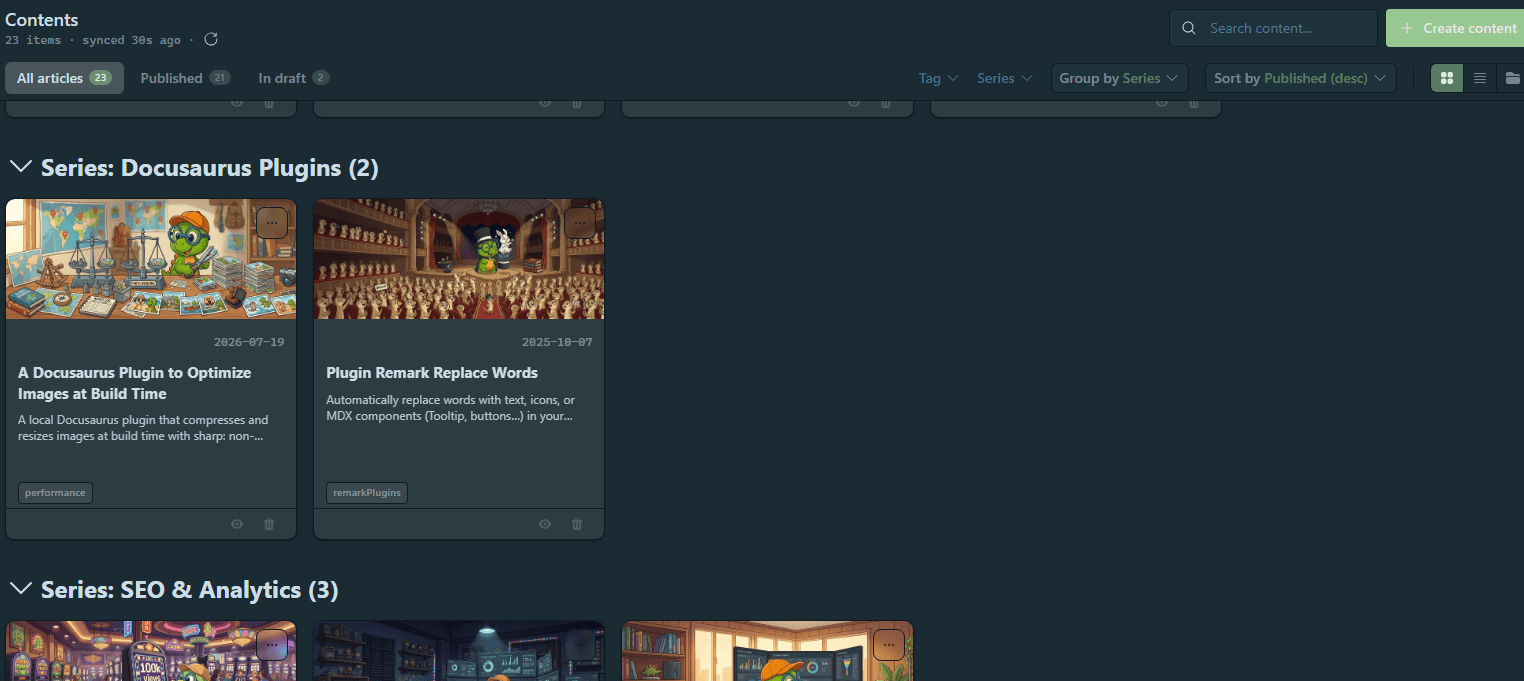
For sorting, four built-in options (LastModifiedAsc/Desc, FileNameAsc/Desc). Last modified, descending, is the one that matches actual use — you almost always come back to what you just touched:
"frontMatter.content.defaultSorting": "LastModifiedDesc"
And if you want all of this in place as soon as it opens, the dashboard's initial state is configurable too — sorting, grouping, pre-filled filters — even opening automatically with the project:
"frontMatter.dashboard.openOnStart": true,
"frontMatter.dashboard.content.defaults": {
  "sorting": "LastModifiedDesc",
  "grouping": "None"
}
Cards can be pinned: a pinned article rises to the top of the dashboard, above any sorting. Handy for the drafts of a series in progress. These pins live in .frontmatter/database/pinnedItemsDb.json — purely local interface state, the very file we suggested ignoring in Git for teams in the previous article.
The great taxonomy cleanup
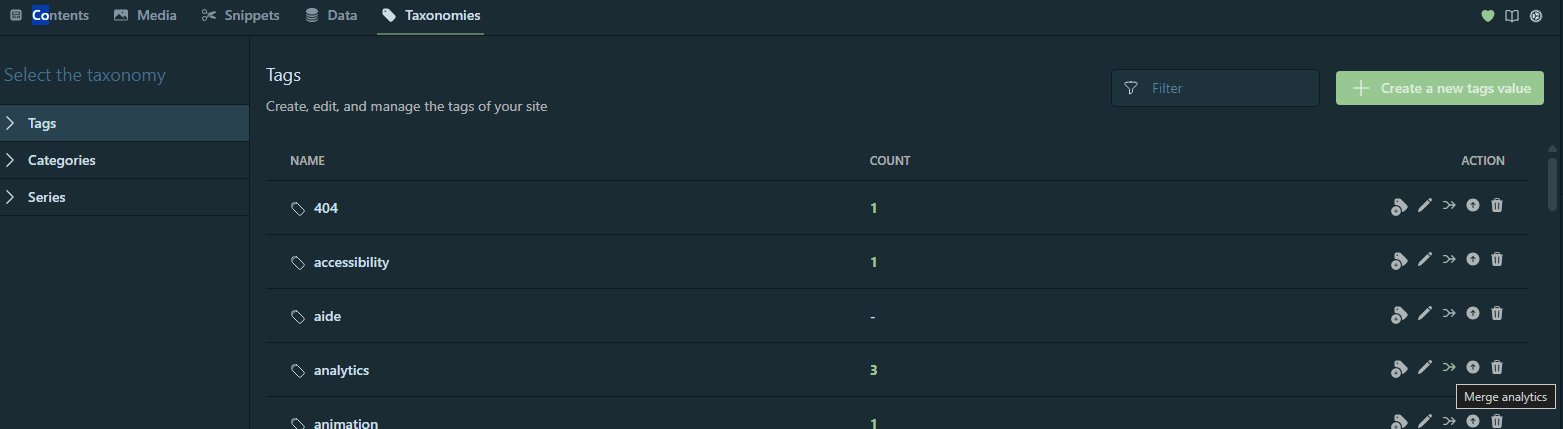
This is the feature that has served me the most, and it doesn't look like much. The dashboard has a Taxonomy tab: the list of all your tags, with five actions — add, apply to content, rename, merge, delete. The last three propagate to every affected file.
Why does it matter? Remember the audit from the previous article: difficulty written eight different ways, two articles with serie: instead of series:. A front matter is validated by no one — inconsistencies pile up in silence.
My tag vocabulary is no exception. Inspecting it for this article, here's what I found in taxonomyDb.json:
$ node -e "const t=require('./.frontmatter/database/taxonomyDb.json').taxonomy.tags; console.log(t.filter(x=>t.map(y=>y.toLowerCase()).filter(z=>z===x.toLowerCase()).length>1))"
[ 'Iconify', 'SEO', 'iconify', 'seo' ]
SEO and seo. Iconify and iconify. And searching by hand: automation next to automatisation, productivity next to productivité — leftovers from a time when this blog hesitated between two languages. A hundred or so tags for about twenty articles: the classic symptom of a vocabulary no one ever curated.
Before Front Matter, fixing this meant a careful search-and-replace across all of blog/, file by file. Now: Taxonomy tab, select seo, Merge into SEO, and the extension rewrites every affected article.
Every taxonomy action (like every save from the panel) rewrites the front matter of the affected files: normalized YAML style, quotes removed, fields reordered. Nothing serious, but the Git diff can be bigger than the actual change. Read it before committing — a reflex that has already saved me from shipping stray modifications.
The media library
Second dashboard tab: Media. It shows everything the public folder contains — static/ for us, that's the frontMatter.content.publicFolder setting laid down at initialization — with previews, and drag and drop from the explorer works.
Every image has its actions: copy the relative path (the one you paste into Markdown), delete, and above all edit the metadata — title, caption, alternative text. That metadata goes into .frontmatter/database/mediaDb.json.
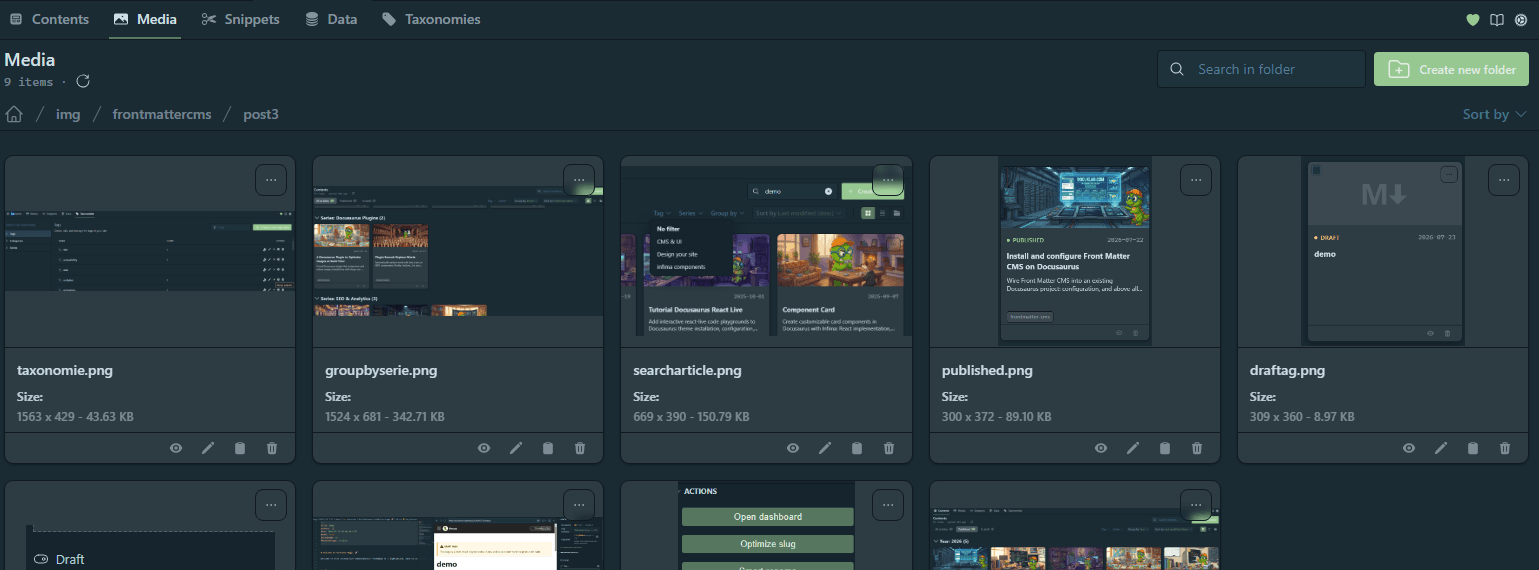
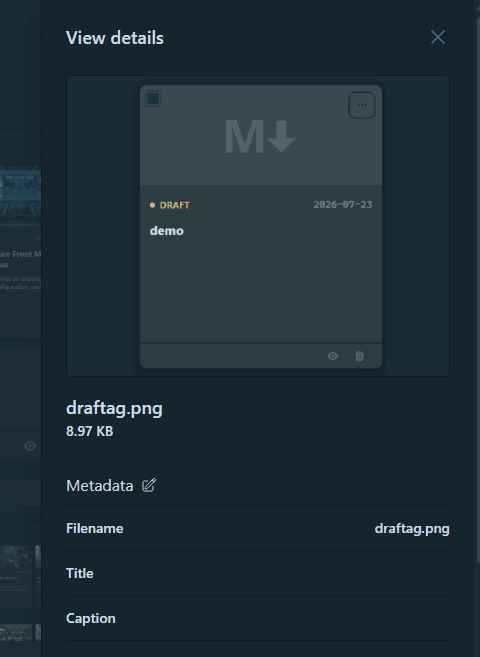
Total honesty: my mediaDb.json is two bytes — {}. My images arrive by drag and drop into the article's folder, and I write the alternative text directly in the Markdown. For a single-author blog where each image is used once, the media library is more a browsing tool than a management one.
It earns its keep in two cases: reused images (logos, diagrams, banners — the alt text entered once in the metadata is offered at every insertion), and team work, where "which image already has an alt?" becomes a real question. Note also that the accepted file types are configurable (frontMatter.media.supportedMimeTypes) — audio and video included.
What it changes, concretely
My routine before / after, without exaggeration:
| Gesture | Before | Now |
|---|---|---|
| Reopen yesterday's article | explorer → year → month → day → folder | dashboard, first card |
| See a draft rendered | npm start in a terminal, then navigate by hand | Start server, then Open preview |
| "Where's my article about X?" | VS Code search across all of blog/ | dashboard search or filter |
| See the state of a series | from memory, or by re-reading the published page | grouping by series |
| Rename a tag everywhere | manual search-and-replace, fingers crossed | Taxonomy → Merge |
| Rename an article after its title | rename file and folder by hand | Smart rename |
| Check what's still a draft | grep -r "draft: true" blog/ | status filter |
The dated tree hasn't gone anywhere — it's still what Git versions and what the URLs tell. I just don't walk it anymore. Folders are for machines; the dashboard is for me.
The series is moving: the why, the configuration, and now the day-to-day. Everything so far uses Front Matter as it comes out of the box — finely configured, but with nothing added to it.
In the next article, we push the tool beyond its box: templates and snippets so you never start from a blank page, buttons of your own in the interface, and splitting the configuration into several files.
This article is part of the CMS & UI series:
- Why Front Matter CMS with Docusaurus
- Install and configure Front Matter CMS on Docusaurus
- Front Matter CMS day to day: dashboard, filters and media
Loading comments…
Related posts

Install and configure Front Matter CMS on Docusaurus
July 22, 2026

Why Front Matter CMS with Docusaurus
July 19, 2026

