Install and configure Front Matter CMS on Docusaurus





In the previous article, we saw why Front Matter CMS is worthwhile on a Docusaurus project. Let's get practical.
Installation takes two minutes and the extension guides us through it. The real work — the part that makes the difference between a gadget and a tool you use every day — is to match the CMS to your own front matter schema. And, as we'll see, to have the courage to model only what actually serves a purpose.
Wire Front Matter into an existing Docusaurus site, understand the main frontmatter.json settings, translate your front matter into a form, and remove manual typing wherever possible.
Picking up where we left off
In the previous article, the extension was installed and the project initialized: frontmatter.json is at the root, the .frontmatter/ folder exists. If that's not done yet, now is the time — the rest of this article starts from there.
A quick reminder of the tree
Until initialization has been carried through to the end, no file is created. The extension can be installed and active without anything having changed in your repository. If you don't see frontmatter.json appear, the wizard is still waiting on a step.
What Front Matter detects on its own
Good surprise: on a Docusaurus project, initialization doesn't start from scratch! Front Matter automatically detects the project type.
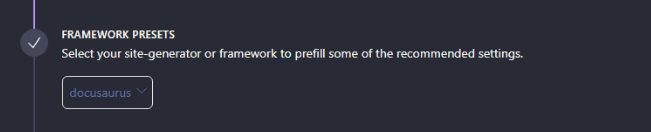
Anatomy of the configuration
frontmatter.json: the most useful line in the file
The configuration file starts with a line that's easy to skip over:
{ "$schema": "https://frontmatter.codes/frontmatter.schema.json" }
This $schema gives VS Code autocompletion and real-time validation. Above all it's the source of truth when the documentation is silent: whenever you're unsure about a key or an allowed value, the schema settles it. I came back to it several times while writing this article.
The documentation lists 21 field types that we're about to discover.
curl -s https://frontmatter.codes/frontmatter.schema.json -o schema.json
88 KB describing everything Front Matter accepts: content types, taxonomies, dashboard settings, Git integration, preview, custom scripts. The exhaustive list of field types is there, and nowhere else.
Note that there are two URLs:
| Schema | Status | Recommended use |
|---|---|---|
| https://beta.frontmatter.codes/frontmatter.schema.json | BETA | Tests, new features, exploration |
| https://frontmatter.codes/frontmatter.schema.json | Stable | Production, serious projects |
.frontmatter/: the extension's data
This folder stores what Front Matter accumulates: database/taxonomyDb.json (the tag vocabulary) and database/pinnedItemsDb.json (your dashboard pins), but also the templates (which we'll discover in another article).
You can also store the configuration there: .frontmatter/config/.frontmatter.json
In a professional setting with many contributors, that's what I do personally.
The four settings that connect Front Matter to your site
{
  "frontMatter.framework.id": "docusaurus",
  "frontMatter.content.publicFolder": "static",
  "frontMatter.preview.host": "http://localhost:3000",
  "frontMatter.content.pageFolders": [
    { "title": "blog", "path": "[[workspace]]/blog" }
  ]
}
| Setting | Role | Adapt it if… |
|---|---|---|
framework.id | Enables Docusaurus-specific behaviors | never, if detection worked |
content.publicFolder | Where the media live (static) | your public folder has another name |
preview.host | The URL of your dev server | you're not running on port 3000 |
content.pageFolders | Which folders hold editable content | you have docs, pages, several blogs… |
pageFolders is the most important one: it tells Front Matter where to look, and which content type to attach to each folder.
The [[workspace]] token is replaced by the project root: that's what makes the configuration shareable between machines.
The content type: matching the CMS to your front matter
Our config file is well on its way. The generated content type, on the other hand, won't match your blog — we'll get to that, no panic.
"frontMatter.content.pageFolders": [
  {
    "title": "Blog",
    "path": "[[workspace]]/blog",
    "contentTypes": ["article"]
  }
]
A content type describes the fields of your articles; Front Matter derives the form that will appear in your interface — you remember this one. So, for a single blog, you can have several content types (Tutorial, Article, News, Unboxing…): each one offers a different set of choices in the interface to generate the front matter.
Done right, it makes the typo that breaks a build impossible.
Why the default type never fits
Initialization generates a type with title, description, date, preview, draft, tags and categories. Compared to a real article like the ones on this blog, the mismatch jumps out: it adds two fields I use nowhere (preview, categories) and ignores almost everything I actually rely on (slug, image, authors, series…).
It's just a base to get you started.
"frontMatter.taxonomy.contentTypes": [
  {
    "name": "article",
    "fileType": "mdx",
    "pageBundle": true,
    "defaultFileName": "index",
    "slugTemplate": "{{title}}",
    "filePrefix": "{{year}}/{{month}}/{{day}}/",
    "previewPath": "blog",
    "trailingSlash": true,
    "clearEmpty": true,
    "fields": [
      {
        "title": "Title",
        "name": "title",
        "type": "string",
        "required": true
      },
      {
        "title": "Description",
        "name": "description",
        "type": "string",
        "required": false
      }
      // … and the other fields
    ]
  }
]
Step 1 — Inventory your existing fields
Don't configure blindly: start from what you already write. A short script lists every field actually present, with its frequency:
const fs = require("fs");
const path = require("path");

function walk(dir, acc = []) {
  for (const entry of fs.readdirSync(dir, { withFileTypes: true })) {
    const p = path.join(dir, entry.name);
    if (entry.isDirectory()) walk(p, acc);
    else if (/\.mdx?$/.test(entry.name)) acc.push(p);
  }
  return acc;
}

const counts = {};
for (const file of walk("blog")) {
  const match = fs
    .readFileSync(file, "utf8")
    .match(/^---\r?\n([\s\S]*?)\r?\n---/);
  if (!match) continue;
  for (const line of match[1].split(/\r?\n/)) {
    const key = line.match(/^([A-Za-z_][A-Za-z0-9_]*):/);
    if (key) counts[key[1]] = (counts[key[1]] || 0) + 1;
  }
}

Object.entries(counts)
  .sort((a, b) => b[1] - a[1])
  .forEach(([k, v]) => console.log(String(v).padStart(3), k));
$ node scripts/audit-frontmatter.cjs
28  title
28  description
28  slug
28  image
28  authors
28  tags
28  date
27  inLanguage
26  hide_table_of_contents
25  schemaTypes
25  keywords
24  genre
24  series
23  difficulty
23  copyrightYear
…   (35 more)
If you're starting from a blank website, the approach will be a bit different: you'll have to think about what you want in your frontmatter.
It's a step not to be skipped.
In my case: lots of fields, and two surprises.
difficultywas written 8 different ways (Beginner,Débutant,intermediate,Beginner to Intermediate…) for four actual values.- Two articles used
serie:instead ofseries:— a missing letter that made them invisible on the series pages.
Even without installing a CMS, this script is useful: it reveals inconsistencies that no tool flags, because the front matter is validated by no one.
Step 2 — Model only what serves a purpose (the step everyone skips)
Before translating all these fields into a form, a second question, far more important: who reads them?
The trick is to run a grep:
grep -rn "difficulty|genre|copyrightYear|totalTime" src/
src/pages/repository.mdx:34:genre: "Open Source Software" # Content genre src/pages/repository.mdx:47:copyrightYear: 2025 # Copyright year
In my case, the answer was brutal: no one. These fields came from schema.org, in anticipation of a JSON-LD component… that I had never written and kept putting off. So they were typed into every article and produced strictly nothing.
And even if I did write that component, not all of them would be worthwhile. The honest sort:
| Level | Fields | Verdict |
|---|---|---|
| Really count | title, description, image, date, last_update, authors | Article/BlogPosting: headline, image, datePublished, dateModified, author |
| Dead since 2023 | totalTime, prepTime, tool, supply, yield, estimatedCost, faq | Google removed HowTo rich results, and restricted FAQPage to government and health sites |
| Never counted | keywords, genre, category, articleSection, audience, wordCount, copyrightYear, proficiencyLevel, educationalLevel… | Valid schema.org vocabulary, but Google displays it nowhere |
dateModified is the great underrated one of the bunch: it's a genuine freshness signal, and it fills itself in (see below).
Result: I went from around fifty fields (I'll spare you the list) down to 14.
Google changes its rich results regularly — the HowTo and FAQ removals date from 2023. Check the current state on Google Search Central before deciding for your own site.
Step 3 — Choose the right type for each field
The schema exposes 22 types. Here's the complete list first, as the documentation presents it:
| Type | Role |
|---|---|
string | one or several lines of text |
number | integer values |
datetime | date fields |
boolean | true or false |
image | image handling |
file | file handling |
choice | a set of predefined options |
list | several text values |
draft | the publication state of the content |
tags | tag handling |
categories | category handling |
taxonomy | handling of a taxonomy |
fields | nested sub-fields |
fieldCollection | a reusable set of fields |
block | content blocks |
dataFile | values pulled from a data file |
slug | slug handling |
contentRelationship | relationships between content |
customField | custom fields |
Two additional types store nothing: they structure the form.
| Type | Role |
|---|---|
divider | a visual separator |
heading | a section heading |
That makes 21. The twenty-second, json, is declared only in the schema — which is exactly why it's better to trust it.
These 22 types let you shape the interface so the fields suit you best, both ergonomically and technically.
Here now is the mapping for the fields I chose to keep:
| YAML field | Front Matter type | Why this choice |
|---|---|---|
title | string + required | the bare minimum |
slug | string | we keep control (no automatic generation) |
description | string | subject to the SEO limit (160) |
image | image + isPreviewImage | opens the media picker and serves as the dashboard thumbnail |
authors | choice + multiple | restricted to the keys in blog/authors.yml |
date | datetime + isPublishDate | designates the publication date |
last_update | fields | a YAML object → sub-fields |
draft | draft | dedicated type, tied to the status |
tags | tags | draws from the shared taxonomy |
mainTag | tags limited to 1 | see step 4 |
series | taxonomy | see step 4 |
hide_table_of_contents | boolean | a checkbox |
inLanguage | choice + default | see step 4 |
A simple field looks like this:
{
  "title": "Description",
  "name": "description",
  "type": "string",
  "description": "SEO summary shown in Google. 160 characters maximum."
}
Visual

We'll see later that we can set default values and make the field required.
The field's description (not to be confused with the description field!) appears under the label in the form. It's the ideal place to document a team convention.
Step 4 — Remove manual typing
This is where a content type becomes truly pleasant. Four mechanisms, from the simplest to the cleverest.
1. Reuse a list of choices. The author of an update is necessarily an author of the blog: might as well give them the same list, rather than retyping it.
{
  "title": "Last update",
  "name": "last_update",
  "type": "fields",
  "fields": [
    {
      "title": "Date",
      "name": "date",
      "type": "datetime",
      "isModifiedDate": true
    },
    {
      "title": "Author",
      "name": "author",
      "type": "choice",
      "choices": ["docux"]
    }
  ]
}
last_update:
  date: 2026-07-20
  author: docux
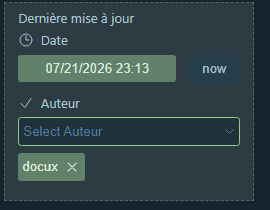
isModifiedDate does the rest: Front Matter updates the date on its own on every change — and it's precisely dateModified that matters for SEO.
2. Draw from an existing taxonomy. My mainTag is always one of my tags. Rather than a fixed list, we reuse the living taxonomy:
{
  "title": "Main tag",
  "name": "mainTag",
  "type": "tags",
  "taxonomyLimit": 1,
  "singleValueAsString": true
}
mainTag: frontmatter-cms
taxonomyLimit: 1 allows only one value, and singleValueAsString writes it as a string (mainTag: performance) instead of an array — essential so the existing code keeps working.
3. Create a taxonomy editable from the interface. A hard-coded choices list forces you to reopen the JSON for every new series. A custom taxonomy, on the other hand, grows from the dashboard:
"frontMatter.taxonomy.customTaxonomy": [
  {
    "id": "series",
    "options": ["CMS & UI", "Docusaurus Plugins", "infima components"]
  }
]
{
  "title": "Series",
  "name": "series",
  "type": "taxonomy",
  "taxonomyId": "series",
  "taxonomyLimit": 1,
  "singleValueAsString": true
}
UI view

This is exactly the kind of detail that would have prevented my misspelled serie:: you no longer type, you pick.
4. Provide default values. Every field accepts a default, including with placeholders:
{ "name": "date", "type": "datetime", "default": "{{now}}", "isPublishDate": true },
{ "name": "inLanguage", "type": "choice", "choices": ["en", "fr-FR"], "default": "en" }
The available placeholders include {{now}}, {{year}}, {{month}}, {{day}}, {{title}}, {{slug}}…
A default fills a field when an article is created. It does not retroactively fix existing articles.
Step 5 — Organize the form
Two purely visual types structure the input:
{ "type": "divider", "name": "divider_taxonomy" },
{ "type": "heading", "title": "Classification", "name": "heading_taxonomy" }
I grouped my 14 fields into three sections: Content, Classification, Social.
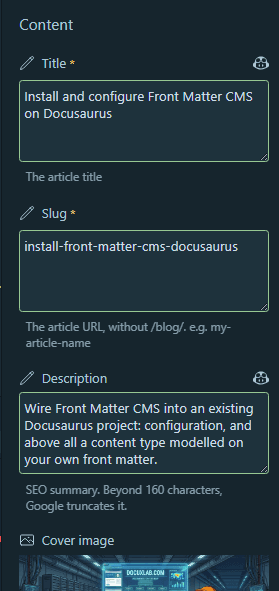
Creating your first article
From the Front Matter panel, Create content generates an article from the content type.

Controlling where the file lands
My articles follow a dated tree: blog/2026/07/19/my-article/index.mdx, with images next to the text. Five settings govern this:
{
  "pageBundle": true,
  "defaultFileName": "index",
  "fileType": "mdx",
  "slugTemplate": "{{title}}",
  "filePrefix": "{{year}}/{{month}}/{{day}}/"
}
These settings are documented nowhere together, and each one sent me into the wall:
defaultFileNameis written without an extension. With"index.mdx", Front Matter slugifies the value (the dot disappears) then appends the extension: you end up withindexmdx.mdx.slugTemplatecan't create folders, and date placeholders aren't resolved there — despite what the documentation suggests. Leave it as{{title}}.- The trailing
/infilePrefixis decisive. Without it, Front Matter glues the last segment to the title:blog/2026/07/19-my-article/instead ofblog/2026/07/19/my-article/.
Two safeguards to know about
The SEO limits
Front Matter counts the characters of the title and the description as you type:
"frontMatter.taxonomy.seoTitleLength": 60,
"frontMatter.taxonomy.seoDescriptionLength": 160

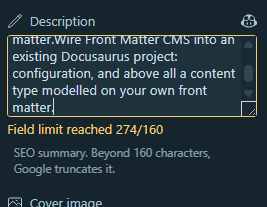
On this blog, the warning revealed 14 descriptions over the limit — therefore truncated in search results for months, without anything flagging it.
The "content type differences" dialog
Front Matter warns you when the open file and the content type don't line up. Two possible causes:
- a forgotten field in your modeling — complete the content type;
- a deliberate pruning, like mine: my old articles still contain the schema.org fields I removed from the form. The dialog is then the price to pay for a clean form, until the old articles are cleaned up.
The dialog offers to create, update, or set the content type. "Create" will add a duplicate content type to your configuration. Complete the existing type, or simply ignore the warning if it matches a deliberate choice.
What to version in Git
frontmatter.json: yes, always. It's Front Matter's central argument: the configuration travels with the code, and the whole team shares the same form after agit pull..frontmatter/database/: it depends.taxonomyDb.json(the tag vocabulary) makes sense in a team;pinnedItemsDb.jsonis only local interface state and will generate noise in your diffs.
On this blog, I chose to version everything, including the database. The reason is simple: I'm the only one writing, so the noise in the diffs is negligible, and I'd rather a git clone restore the complete environment. In a team, I'd add .frontmatter/database/pinnedItemsDb.json to the .gitignore.
The complete result
Here is this blog's configuration, exactly as it runs today — everything we've just built, gathered in a single file:
{
  "$schema": "https://frontmatter.codes/frontmatter.schema.json",
  "frontMatter.framework.id": "docusaurus",
  "frontMatter.content.publicFolder": "static",
  "frontMatter.preview.host": "http://localhost:3000",
  "frontMatter.content.defaultFileType": "mdx",
  "frontMatter.content.pageFolders": [
    {
      "title": "Blog",
      "path": "[[workspace]]/blog",
      "contentTypes": ["article"]
    }
  ],
  "frontMatter.taxonomy.seoTitleLength": 60,
  "frontMatter.taxonomy.seoDescriptionLength": 160,
  "frontMatter.taxonomy.customTaxonomy": [
    {
      "id": "series",
      "options": [
        "Api and scripts in Docusaurus",
        "CMS & UI",
        "Design your site",
        "Docusaurus Plugins",
        "SEO & Analytics",
        "Tools",
        "infima components"
      ]
    }
  ],
  "frontMatter.taxonomy.contentTypes": [
    {
      "name": "article",
      "fileType": "mdx",
      "pageBundle": true,
      "defaultFileName": "index",
      "slugTemplate": "{{title}}",
      "filePrefix": "{{year}}/{{month}}/{{day}}/",
      "previewPath": "blog",
      "trailingSlash": true,
      "clearEmpty": true,
      "fields": [
        {
          "type": "heading",
          "title": "Content",
          "name": "heading_content"
        },
        {
          "title": "Title",
          "name": "title",
          "type": "string",
          "description": "The article title",
          "required": true
        },
        {
          "title": "Slug",
          "name": "slug",
          "type": "string",
          "description": "The article URL, without /blog/. e.g. my-article-name",
          "required": true
        },
        {
          "title": "Description",
          "name": "description",
          "type": "string",
          "description": "SEO summary. Beyond 160 characters, Google truncates it.",
          "required": false
        },
        {
          "title": "Cover image",
          "name": "image",
          "type": "image",
          "isPreviewImage": true
        },
        {
          "title": "Authors",
          "name": "authors",
          "type": "choice",
          "multiple": true,
          "choices": ["docux"],
          "description": "Must match a key in blog/authors.yml."
        },
        {
          "title": "Publication date",
          "name": "date",
          "type": "datetime",
          "default": "{{now}}",
          "isPublishDate": true,
          "required": true
        },
        {
          "title": "Last update",
          "name": "last_update",
          "type": "fields",
          "fields": [
            {
              "title": "Date",
              "name": "date",
              "type": "datetime",
              "isModifiedDate": true
            },
            {
              "title": "Author",
              "name": "author",
              "type": "choice",
              "choices": ["docux"]
            }
          ]
        },
        {
          "title": "Draft",
          "name": "draft",
          "type": "draft"
        },
        {
          "type": "divider",
          "name": "divider_taxonomy"
        },
        {
          "type": "heading",
          "title": "Classification",
          "name": "heading_taxonomy"
        },
        {
          "title": "Tags",
          "name": "tags",
          "type": "tags"
        },
        {
          "title": "Main tag",
          "name": "mainTag",
          "type": "tags",
          "taxonomyLimit": 1,
          "singleValueAsString": true,
          "description": "A single tag, used by the RelatedPosts component."
        },
        {
          "title": "Series",
          "name": "series",
          "type": "taxonomy",
          "taxonomyId": "series",
          "taxonomyLimit": 1,
          "singleValueAsString": true,
          "description": "Editable list from the Front Matter dashboard (the \"series\" taxonomy)."
        },
        {
          "title": "Hide the table of contents",
          "name": "hide_table_of_contents",
          "type": "boolean"
        },
        {
          "title": "Language",
          "name": "inLanguage",
          "type": "choice",
          "choices": ["en", "fr-FR"],
          "default": "en",
          "description": "The blog is published in English; fr-FR is used for drafts awaiting translation."
        },
        {
          "type": "divider",
          "name": "divider_social"
        },
        {
          "type": "heading",
          "title": "Social",
          "name": "heading_social"
        },
        {
          "title": "BlueSky post key",
          "name": "blueSkyRecordKey",
          "type": "string",
          "description": "The part after /post/ in the BlueSky URL. Enables the comment thread."
        }
      ]
    }
  ],
  "frontMatter.content.snippets": {
    "Columns": {
      "description": "",
      "body": [
        "<Columns>",
        "<Column>",
        "",
        "</Column>",
        "<Column>",
        "</Column>",
        "</Columns>"
      ],
      "fields": []
    }
  }
}
At this stage, Front Matter is no longer a generic extension: it's your schema, reduced to what serves a purpose, with lists that feed themselves and default values that avoid typing.
In the next article, we leave configuration behind for daily use: the dashboard, the filters, media handling, and content organization.
This article is part of the CMS & UI series:
- Why Front Matter CMS with Docusaurus
- Install and configure Front Matter CMS on Docusaurus
Loading comments…
Related posts

Why Front Matter CMS with Docusaurus
July 19, 2026

